Nextcloud on RHEL 8 / Centos 8

If you don't like the idea of storing your personal or corporate data on a public cloud, and if you have your own hardware and technical skills, consider deploying Nextcloud, a software suite written in PHP that you can run on-premise that provides similar functionality as DropBox, Google Docs or Microsoft OneDrive.
Cloud storage under your control
Nextcloud is open source software, licensed under the GNU Affero General Public License which guarantees that you can use, study, share and improve the software without any legal risks, so there is no cost if you are prepared to support it yourself, but if you do need additional features, or access to technical expertise and capabilities, the Nextcloud vendor offers Enterprise Subscriptions.
The generic installation instructions are here, but to make life easier, here is a more specific guide to install Nextcloud on Apache, PostgreSQL and Redhat Enterprise Linux 8 or Centos 8.
Prerequisites
Conveniently, RHEL 8 provides all the prerequisites with the recommended versions straight out of the box, so install as root, or run with sudo, the instructions that follow.
PHP 7.2
Install the following PHP modules:
dnf install -y php php-gd php-mbstring php-intl php-json php-zip php-process php-xml php-bz2 php-fileinfo php-intl php-pgsql
List the PHP modules that have been installed to check that all PHP prerequisites have been met:
php -m
Note that you may come across instructions that include php-imagick, but this is no longer recommended for security reasons (though you could still install it manually if this is a deal-breaker).
Apache HTTP 2.4
If you haven't already installed and enabled Apache, do so now:
dnf install -y httpd
systemctl enable httpd
systemctl start httpd
Open port 80 on the firewall:
firewall-cmd --zone=public --add-service=http --permanent
firewall-cmd --reload
HTTP is OK for a basic installation, but you must get a SSL certificate and use HTTPS on port 443 to secure the service in production.
Check that the Apache server has loaded all the required PHP modules by creating a
file called phpinfo.php under the Apache base directory /var/www/html/ with the following content:
<?php phpinfo() ?>
Browse to http://<your-server-IP>/phpinfo.php and admire your progress so far. Don't forget to delete it immediately after congratulating yourself. No point in giving miscreants more information than they need to know.
PostgreSQL 10
Nextcloud recommends MySQL or MariaDB, but PostgreSQL has enterprise-strength features that the other two do not provide, so install it instead:
dnf install -y postgresql-server postgresql
Initialise the database:
postgresql-setup --initdb
By default, the database content are in /var/lib/pgsql/data and the logs are in /var/lib/pgsql/initdb_postgresql.log.
Start PostgreSQL and enable it to start after reboot:
systemctl start postgresql
systemctl enable postgresql
Check that it is running by listing the processes listening to port 5432:
lsof -i tcp:5432
COMMAND    PID     USER   FD   TYPE DEVICE SIZE/OFF NODE NAME
postmaste 6629 postgres    4u  IPv6  65975      0t0  TCP localhost:postgres (LISTEN)
postmaste 6629 postgres    5u  IPv4  65976      0t0  TCP localhost:postgres (LISTEN)
Set the password for the database administrator user postgres:
su - postgres
$ psql
psql (10.6)
Type "help" for help.

postgres=# password postgres
Enter new password: <db-password>
Enter it again: <db-password>
postgres=# \q
$ exit
logout
Enable MD5-encrypted password authentication from localhost by editing /var/lib/pgsql/data/pg_hba.conf as follows:
# IPv4 local connections:
host all          all          127.0.0.1/32         md5
Test the connection from any user on the server:
psql -h localhost -U postgres
Password for user postgres: <db-password>
psql (10.6)
Type "help" for help.
Install NextCloud
Downloads
Download the latest version from here to a convenient place (such as /tmp). Download the sha256 hash as well:
cd /tmp
wget https://download.nextcloud.com/server/releases/latest.tar.bz2
wget https://download.nextcloud.com/server/releases/latest.tar.bz2.sha256
Verify the checksums to ensure the integrity of the download:
sha256sum latest.tar.bz2
a13f68ce47a1362318629ba5b118a59fa98358bb18f4afc371ea15104f2881f3  latest.tar.bz2
cat latest.tar.bz2.sha256
a13f68ce47a1362318629ba5b118a59fa98358bb18f4afc371ea15104f2881f3  latest.tar.bz2
They are the same, so proceed to untar the application into the Apache directory:
tar -xvjf latest.tar.bz2 -C /var/www/html/
Manually create a data folder for use by the installation wizard later on:
mkdir /var/www/html/nextcloud/data
Change the ownership of /var/www/html/nextcloud to allow the Apache server access:
chown -R apache:apache /var/www/html/nextcloud
SELinux
By default RHEL 8 implements SELinux security policies. Check the status as follows:
getenforce
Enforcing
If Enforcing, either turn off SELinux by editing /etc/selinux/config to set SELINUX=disabled and reboot (definitely not recommended in Production), or configure SELinux appropriately as per this recommendation:
semanage fcontext -a -t httpd_sys_rw_content_t '/var/www/html/nextcloud/data(/.*)?'
semanage fcontext -a -t httpd_sys_rw_content_t '/var/www/html/nextcloud/config(/.*)?'
semanage fcontext -a -t httpd_sys_rw_content_t '/var/www/html/nextcloud/apps(/.*)?'
semanage fcontext -a -t httpd_sys_rw_content_t '/var/www/html/nextcloud/.htaccess'
semanage fcontext -a -t httpd_sys_rw_content_t '/var/www/html/nextcloud/.user.ini'
semanage fcontext -a -t httpd_sys_rw_content_t '/var/www/html/nextcloud/3rdparty/aws/aws-sdk-php/src/data/logs(/.*)?'

restorecon -Rv '/var/www/html/nextcloud/'

setsebool -P httpd_can_network_connect 1
setsebool -P httpd_execmem 1
systemctl reload php-fpm
Create database
Create an empty database for use by Nextcloud:
su - postgres
psql
CREATE USER nextcloud WITH PASSWORD 'YOUR_PASSWORD';
CREATE DATABASE nextcloud TEMPLATE template1 ENCODING 'UNICODE';
ALTER DATABASE nextcloud OWNER TO nextcloud;
GRANT ALL PRIVILEGES ON DATABASE nextcloud TO nextcloud;
\q
exit
Fire up Nextcloud
Restart the Apache instance:
systemctl restart httpd
All being well, you should see the Nextcloud login screen if you browse to http://localhost/nextcloud, as follows:
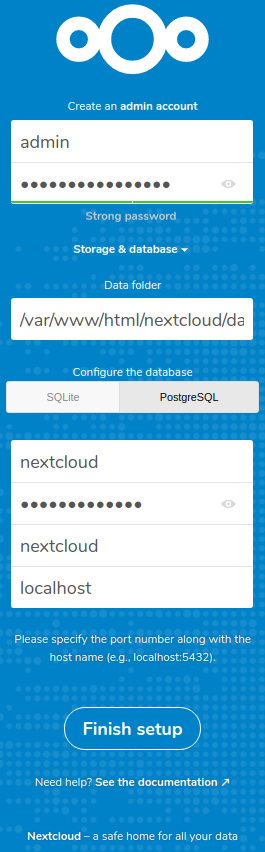
Create an admin account with a strong password, and enter the database credentials that you created above. Note that the Apache server and the database run on the same server, so the hostname is localhost.